
Why are there duplicates in ePACT?
Duplicates can occur if there are multiple records in your registration system or if a parent selects the same child twice instead of selecting their sibling.
ePACT will identify possible duplicates, allowing parents (or legal guardians) to reconfirm their child’s information without getting a Permission Denied error. The Duplicate status allows Organization and Group Administrators to quickly see when there is a duplicate record in ePACT. They will then be able to merge the duplicates in your registration system. This will ensure the member is added to the correct groups.
For Example:
1. Parent registers Child 1 for Week 3 of camps and receives an ePACT request which they complete and submit.
2. Parent (or organization) registers Child 1 for Week 6 of camps but uses a different login in your registration system and receives another ePACT request - they will now be able to re-select the same child and review the info they submitted in an automatic reconfirmation flow.
When there are duplicates in your registration system - you can fix them with instructions below:
If Both Records are in ACTIVE MEMBER RECORDS:
- Members will have the same name and email, but NOT the same Member ID.
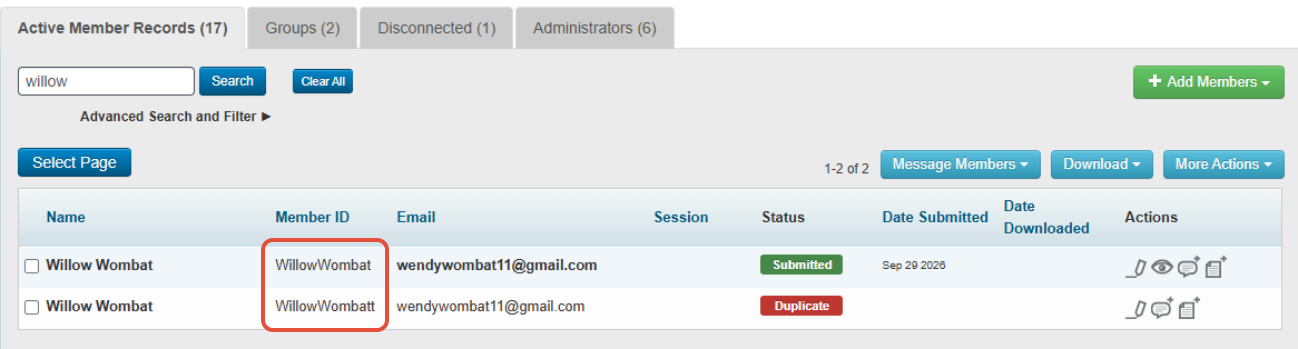
- Parents will receive a new request and once they select the same child, ePACT will push them through a reconfirm process from their initial submission.
- Once they share the record again, the date submitted will be updated.
- The duplicate request will change to a Duplicate status in Active Member Records.
If Both Records are split between ACTIVE MEMBER RECORDS & DISCONNECTED TABS:
You will need to move them both into the Active Member Records by selecting the Submitted Record in Disconnected and Reverting it.
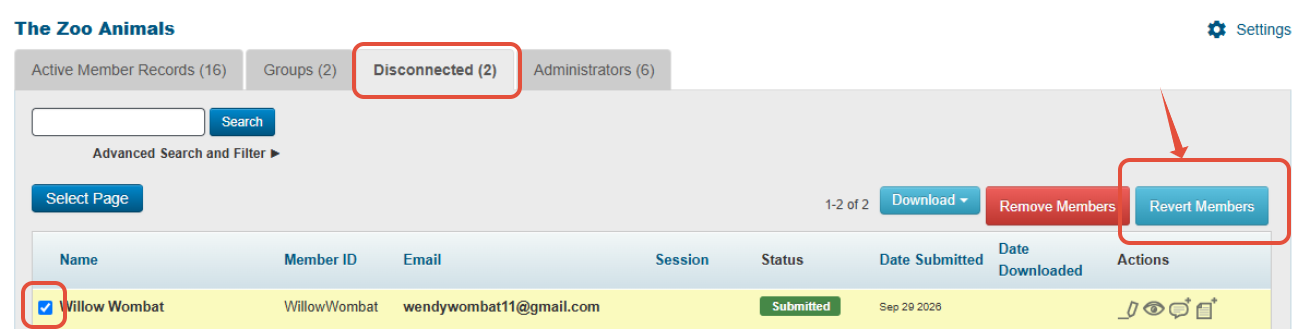
Keeping the Member ID of the Submitted Record
Organizations MUST must merge the records on the registration system as this is the dominant system. If the Member ID they choose is the one for the submitted record, the "Duplicate" record will be moved to the Disconnected Tab on the next API call.
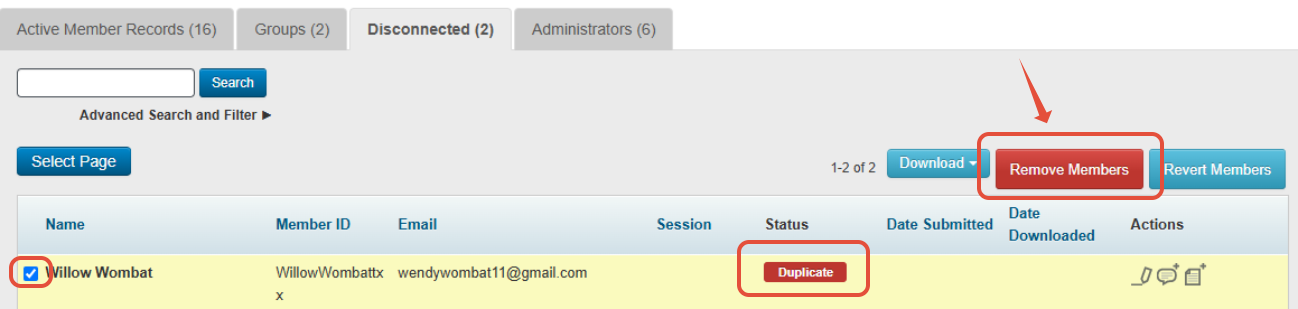
Remember to "remove" these permanently periodically by visiting the Disconnected Tab, searching for the those in this status, selecting them and clicking on "Remove".
Keeping the Member ID of the Duplicate Record
If you opt to keep the Member ID of the Duplicate record, you'll need to update this on ePACT.
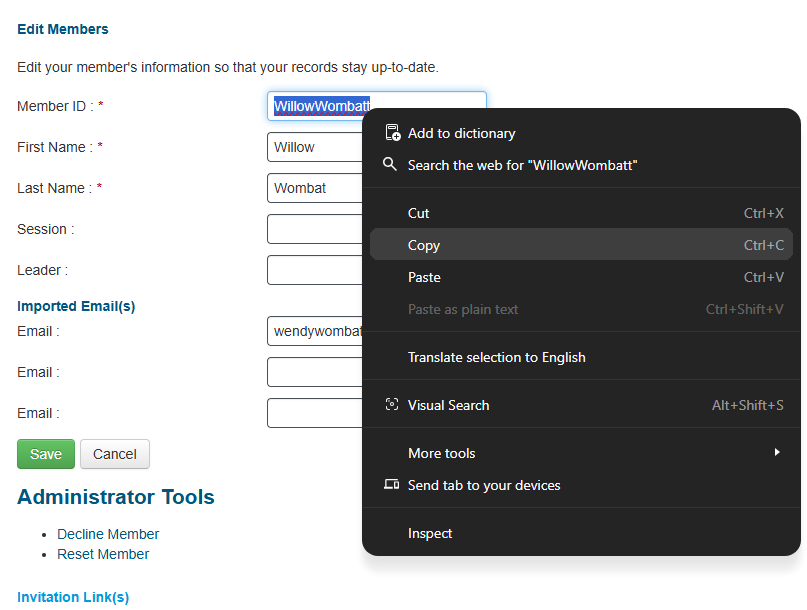
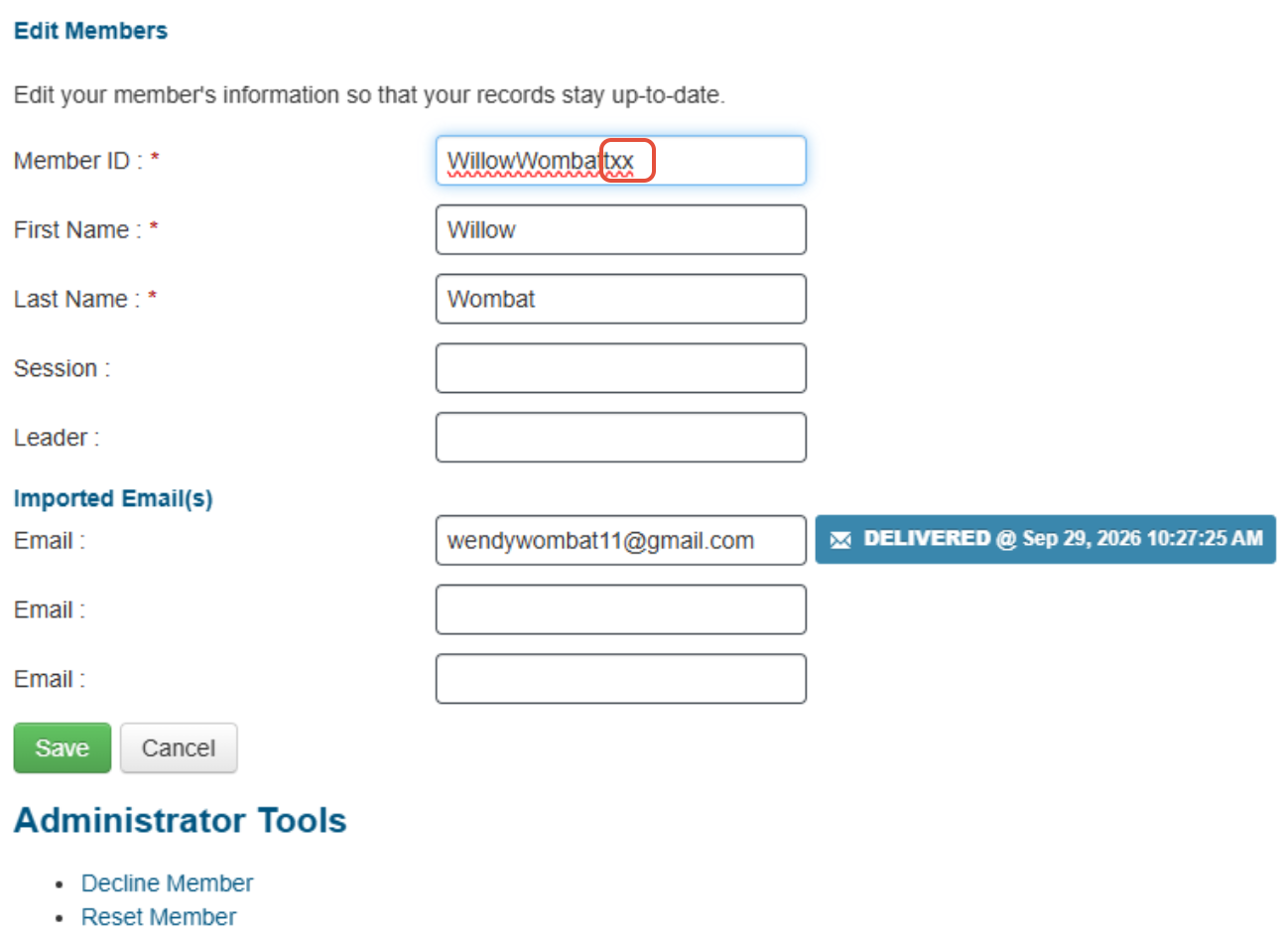
1. Click on the Edit icon for the DUPLICATE record.

2. Copy the Member ID, then add an extra character to differentiate it.
 |  |
3. Click on Save and then select the Submitted record and click on "edit"

4. Now paste the Member ID from the removed Duplicate file in the Member ID. Click on "Save".
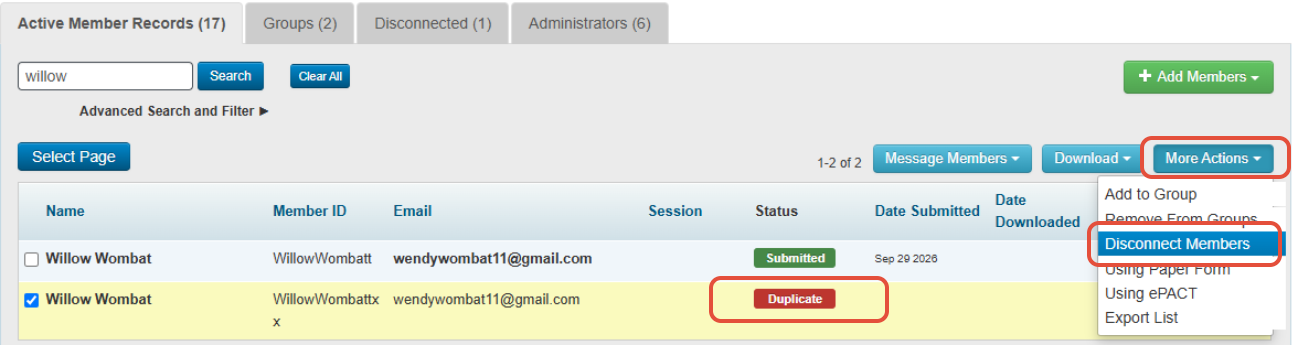
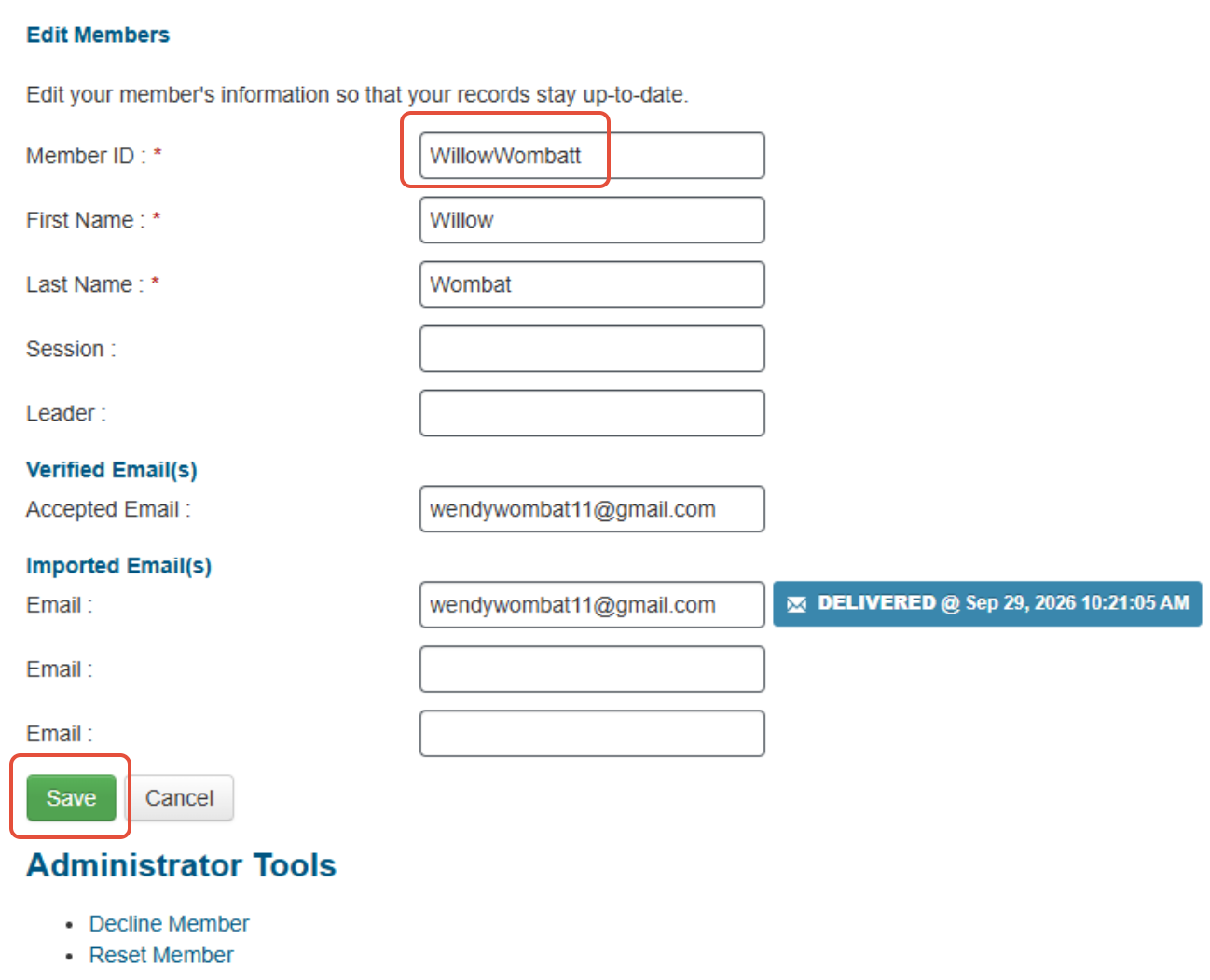 5. Confirm that now the submitted record has the MemberID that you chose to keep in the registration system, then select the duplicate record, "more actions", and then "disconnect members".
6. Go to the Disconnected Tab, select the duplicate record, and click on "Remove Members"
7. On the next API call, the submitted record will be added to all the groups this member is listed in your registration system. If you need to add them to a group immediately- please select them and click on More Actions>Add to Groups and then select the correct groups on the next page.
