
PLEASE NOTE THAT YOU SHOULD ARCHIVE RECORDS FOR ANY WAIVER CHANGES. IF YOU HAVE PURCHASED AUTO-ARCHIVING, YOU DO NOT NEED TO MANUALLY ARCHIVE RECORDS.
If you are using ePACT for more than one program on the same dashboard, your archiving process is slightly different as you will have inactive members in your Disconnected Tab that may become active again over the course of the season.
Why should I archive records?
Whenever a change is made to the form, either by the organization or by ePACT, we recommend archiving your records so you have a copy of the information your participants submitted before the change.
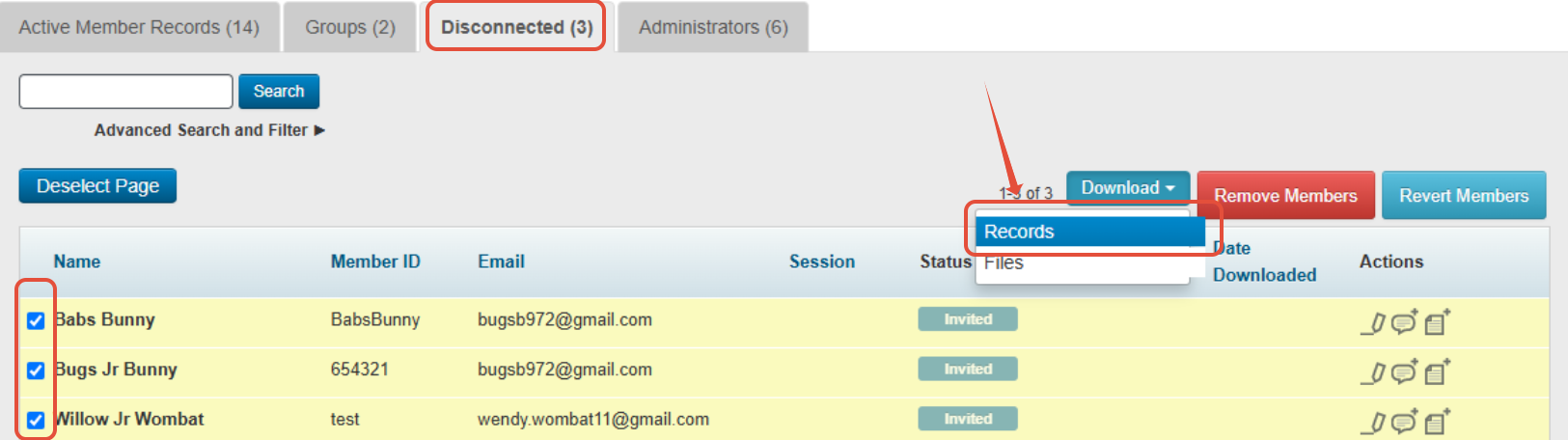
1. Archive the Disconnected Records
a. Go to the Disconnected Tab.
b. Click on Select All, followed by Download>Records.
c. Click on Download. A PDF of all records will be created.
d. Click on Cancel to return to your dashboard
2. Archive the Disconnected Files
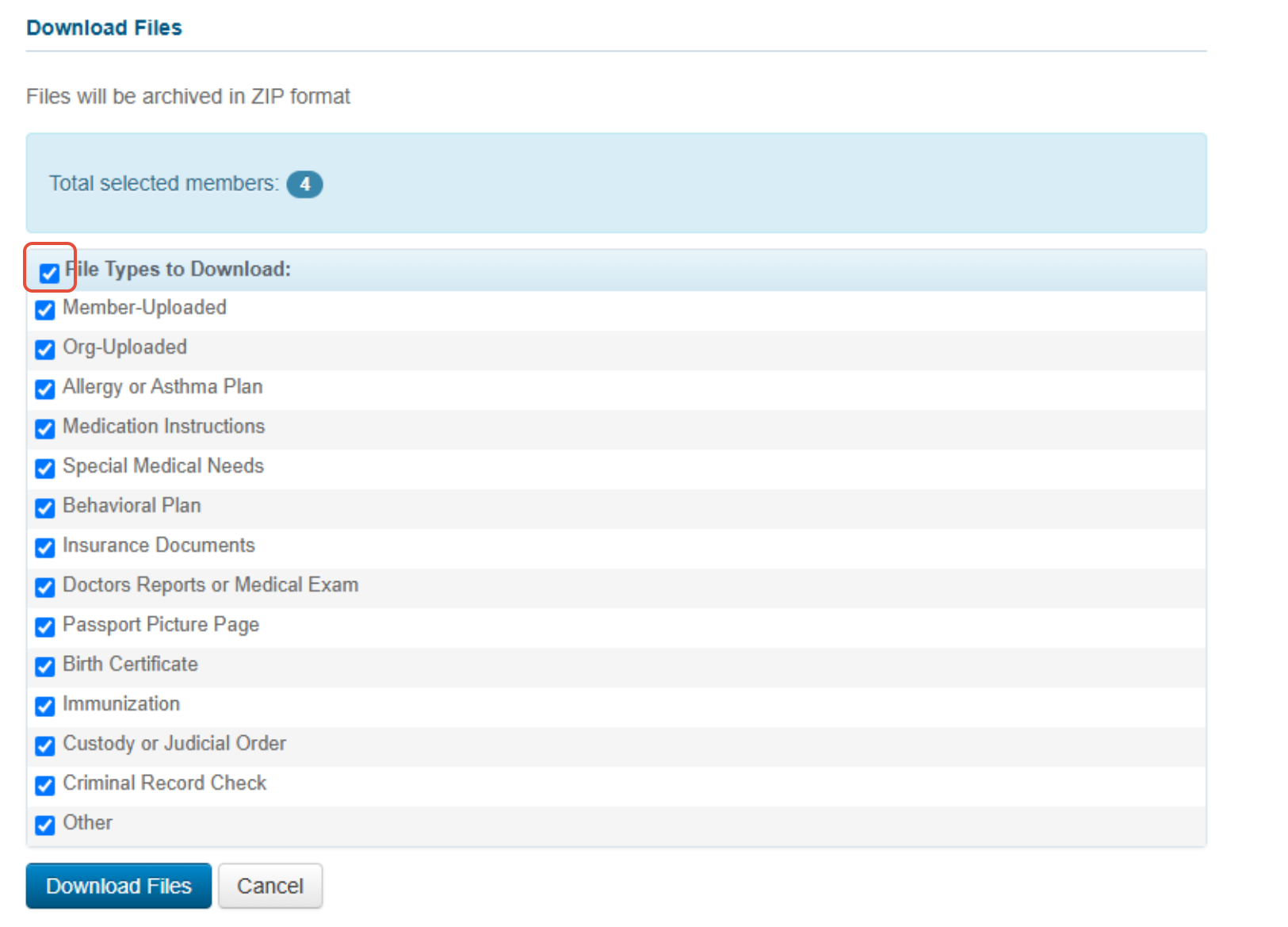
a. Go to the Disconnected Tab.
b. Click on Select All, followed by Download>Files.
c. Check off the box Types to Download
d. Click on Download Files
e. Click on Cancel to return to your dashboard
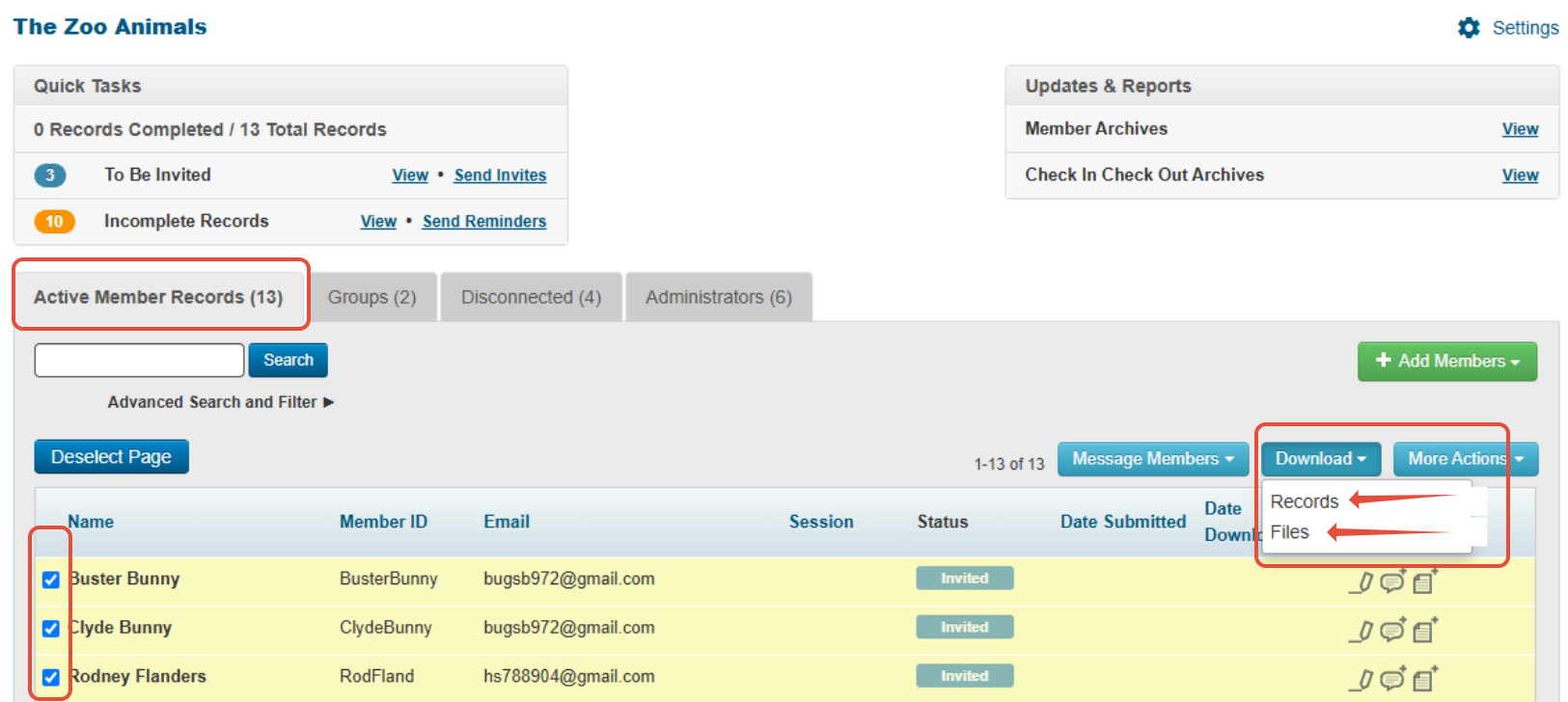
3. Archive the Active Member Records and Files
a. Go to the Active Member Records Tab
b. Repeat Steps 1 and 2 for the Active Member Records.
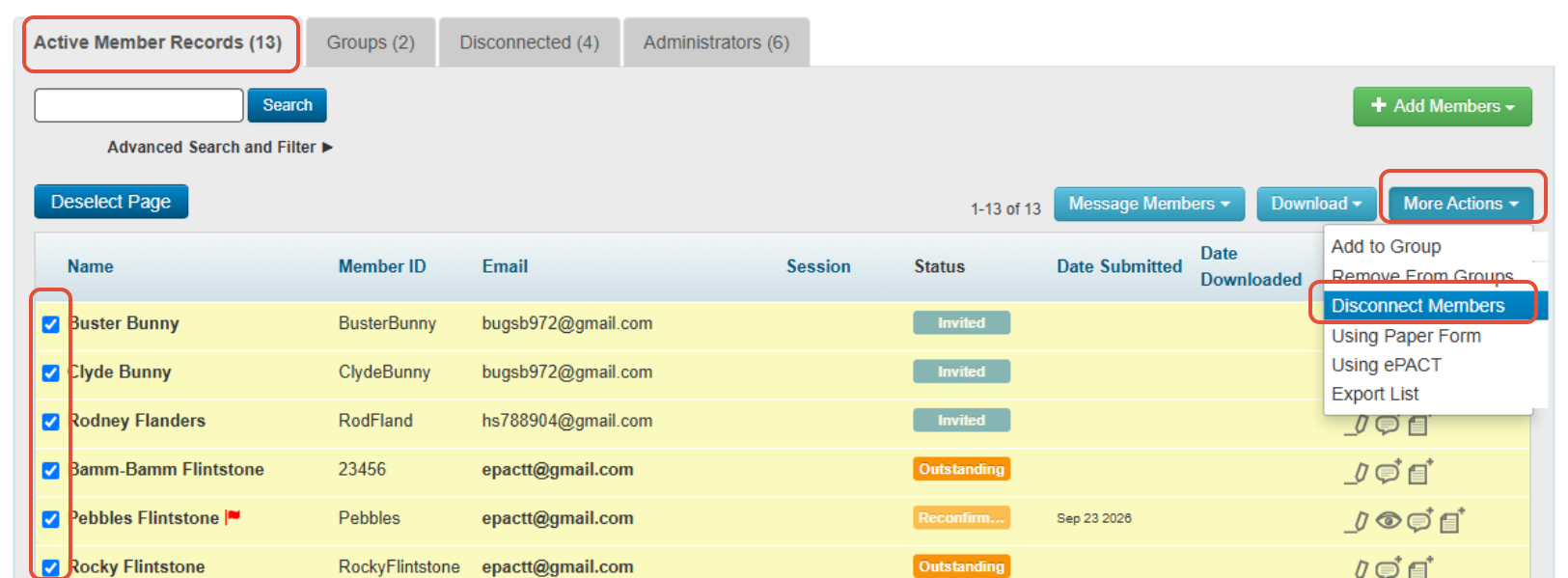
4. Disconnect Members (Inactive until next season)
a. On the Active Member Records Page, Select All
b. Click on More Actions > Disconnect Members
c. Your account is ready to onboard for the next season!
Tired of archiving these records and files every season? Try our auto-archiving feature today! For more information, please visit our Help Center or contact us at help@epactnetwork.com 1.855.773.7228